
HCI Lab 2
Dernière mise à jour : 31 oct. 2020
This lab is about creating a "Roll a Ball" game from scratch using Unity.
I started by creating a new project and adding a new scene, then I added a ground and a rigidbody sphere that will be considered as our player.
To control the movement of the sphere, I installed the unity input system then I added the component to the player.


But, in order to make the sphere move, I had to write a script named PlayerController.
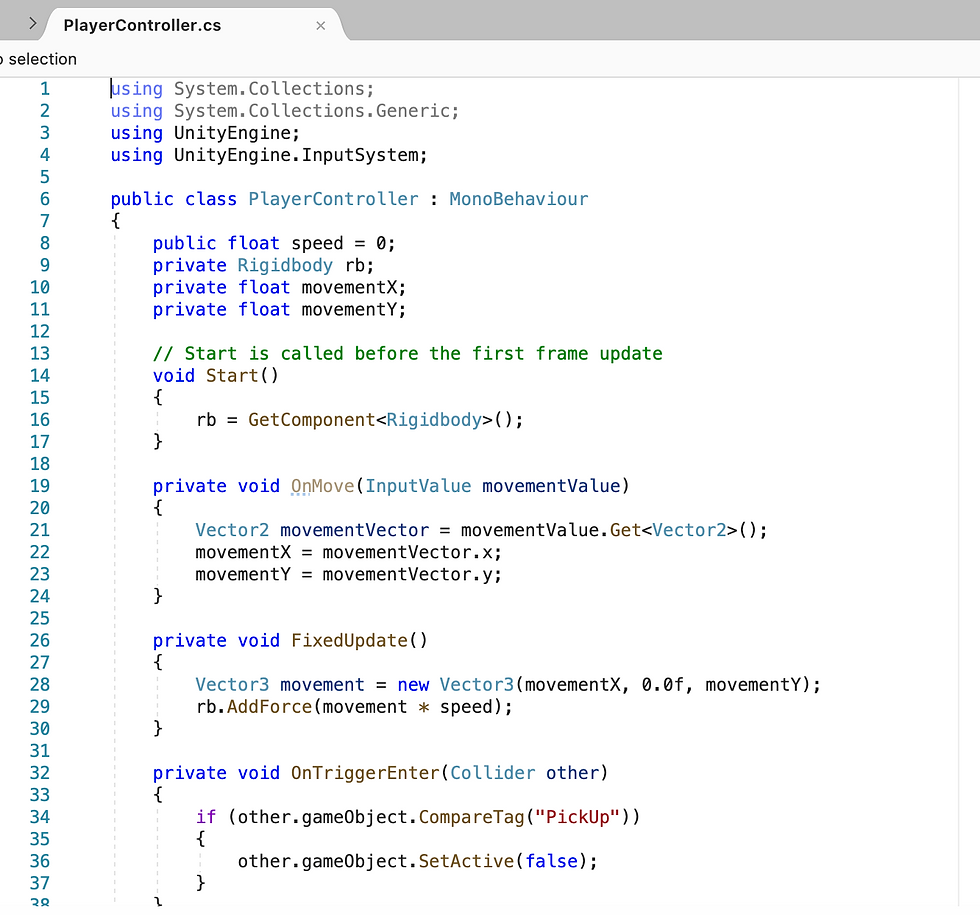
Next, it was important to control the camera’s movement to be able to follow the player around. To do so I positioned the camera at a certain position then I added the following script.

After setting up the environment, it was time to build the play area.
I started by adding 4 walls to mark the area.
After that, I added the objects that the player is supposed to collect to win the game. I started by creating a cube and scaling it as I please, I added a rigidbody component and a trigger collider that detects when the player enters in collision with the collectible.
Then I used the prefab to duplicate it and create more of them.

But, in order to make the collectibles disappear when they in collision, I added a tag named “PickUp” and the OnTriggerEnter function in the PlayerController script.


And finally, I wanted the cubes to rotate so I had to add the following script.

But I encountered some problems with the collectibles:
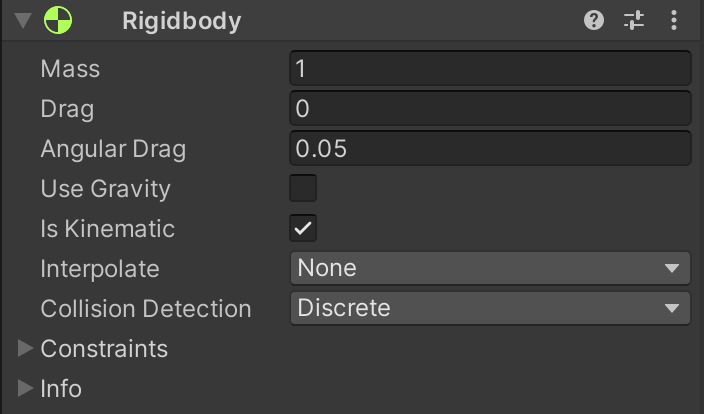
I didn’t want unity to consider the collectibles as static because it would take longer to calculate so I had to add a rigidbody component to reduce the calculation time.
But in doing so, the collectibles fall through the play zone because the gravity is pulling them down and as they are triggers, they don’t collide with the floor.
So, to solve this problem we start by disabling the “Use gravity” box, however the collectibles will still respond to any other force. So, the optimal solution is to enable the “is kinematic” box. In doing so the collectibles won’t respond to physical forces but they can be animated and moved.
Now, we have a moving sphere on a fixed area that makes the collectibles disappear when it collides with them.
The next important step is to count the number of collectibles and display the score.
So, I started by adding an integer variable named count that is initialized in the start function. Then, whenever the ball collides with a collectible, the score increases so we add 1 to the variable count in the OnTriggerEnter function.
After that, in order to display the score I used the user interface (UI system) and TextMesh pro. When adding a TextMesh pro 3 UI objects appear in the hierarchy : Canvas, Text and EventSystem.

After putting the text in the position that I want, I added some elements in the PlayerController script to display the score.
I started by importing TMPro to use the Textmesh pro in the script, after adding a text variable I created a function to update the text each time the ball collides with a collectible.


And finally I added a game end message.

To display the msg when all the collectibles are gone, I added some lines to the PlayerController script. By using the SetActive function I disabled the text in the start function and enabled it when the player collects all of the collectibles in the SetCountText function.


After testing that the game works correctly, the final step is to properly build it. By using the Build Settings window we obtain a working Roll a ball game.


Commentaires